RStudio
Posit Assistant is available in the latest RStudio beta. It includes a conversational chat interface and Next-Edit Suggestions for inline code completions.
1. Download RStudio
Download the latest RStudio Desktop beta from dailies.rstudio.com. RStudio Server also works, but Desktop is recommended.
2. Show the Sidebar
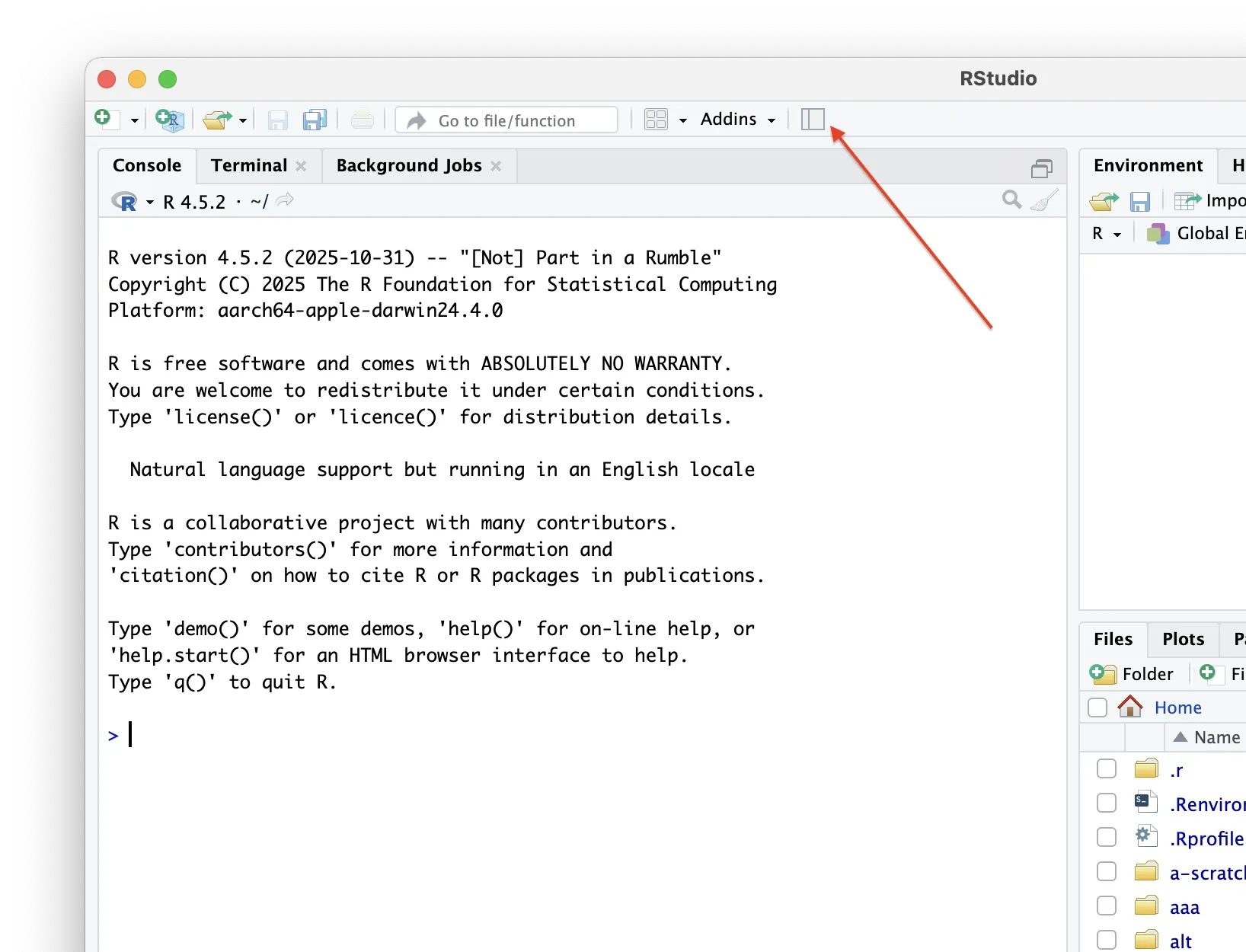
Open RStudio and show the sidebar using the toolbar button, or via View > Show/Hide Sidebar.
3. Install Posit Assistant
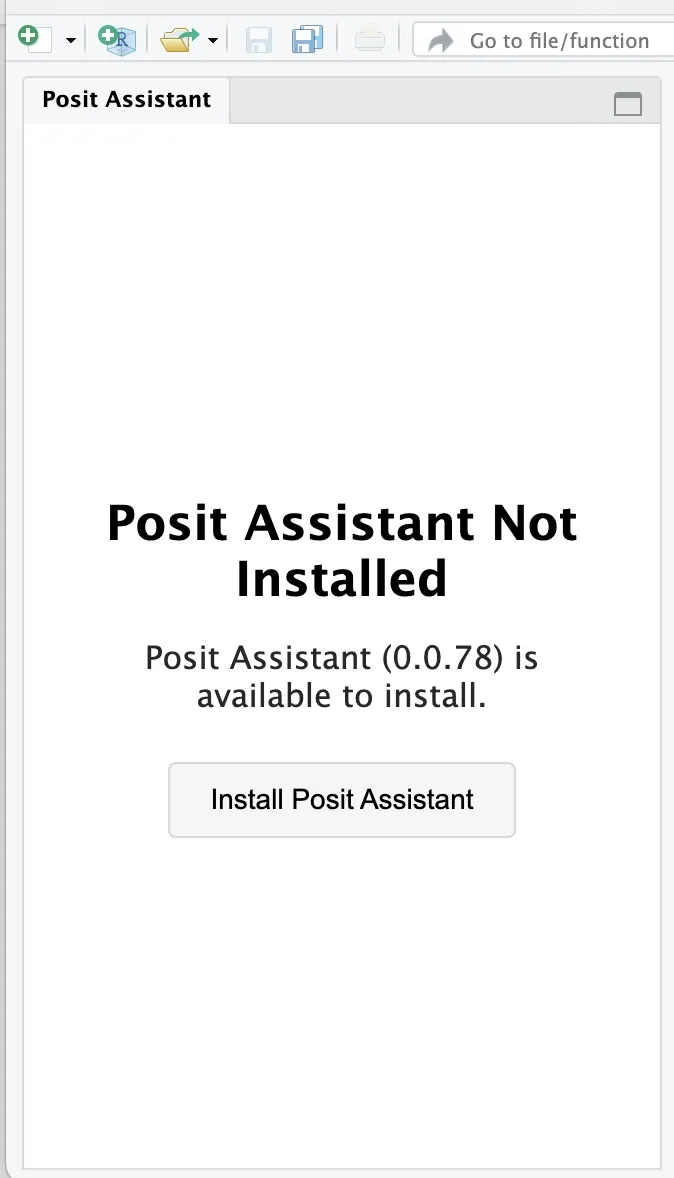
The sidebar will prompt you to install Posit Assistant. Click the install button to proceed.
4. Sign In
After installation, click Sign In to authenticate.
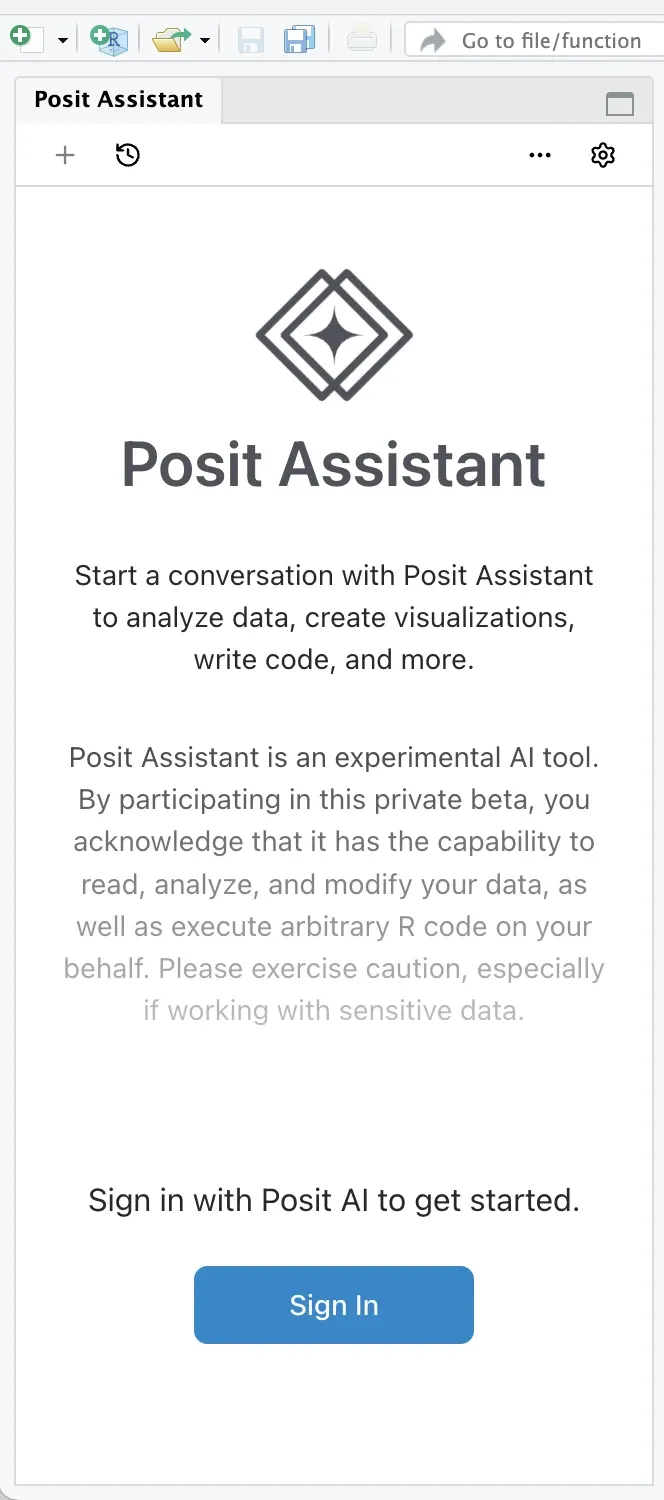
This opens your browser to authorize access via your Posit account. Use the same email address that received your beta invitation.
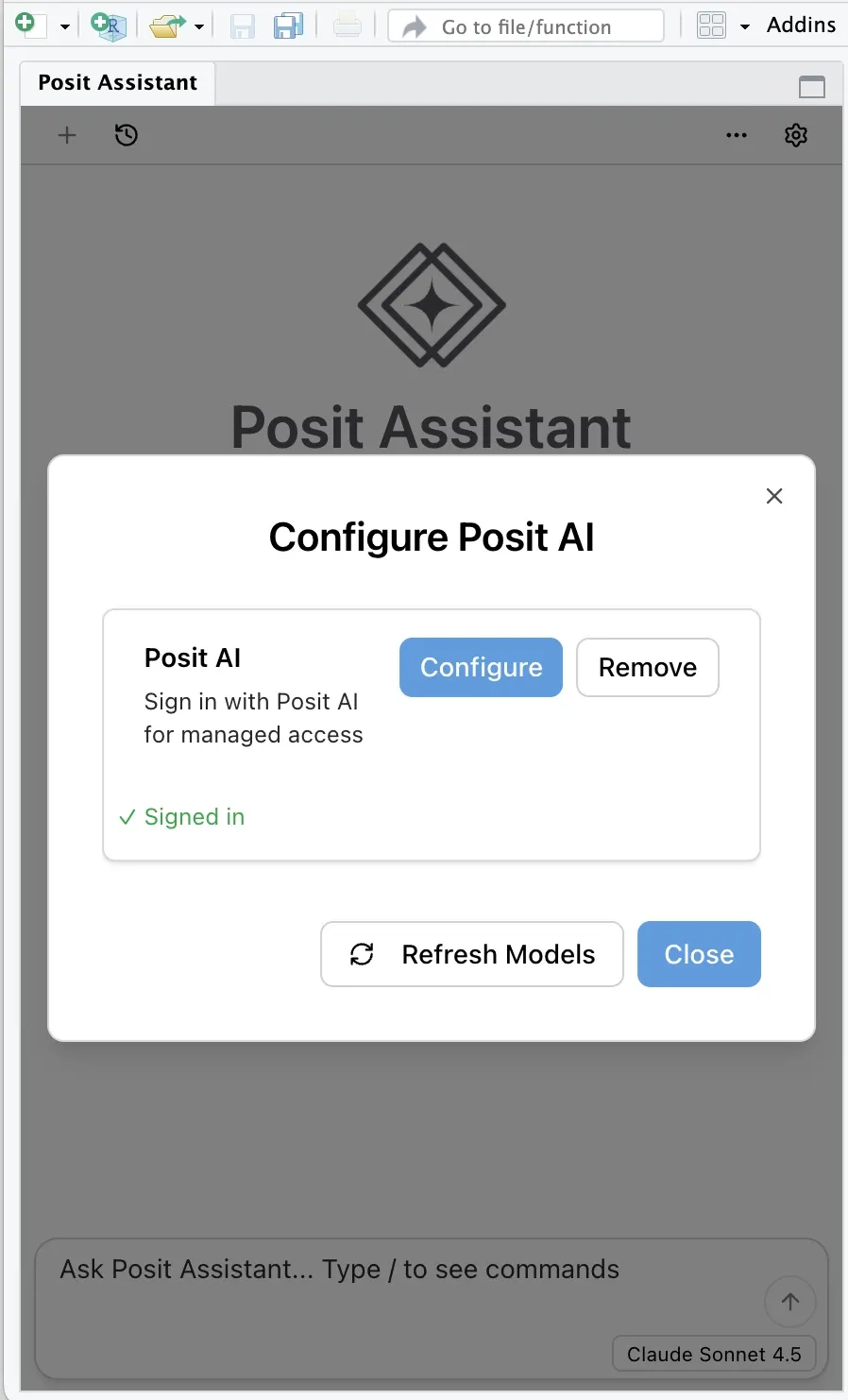
Once authorization is complete, click Close to return to RStudio.
5. Enable Next-Edit Suggestions
Next-Edit Suggestions are disabled by default. To enable them:
- Go to Tools > Global Options > Assistant
- Select Posit Assistant from the “Use code assistant” dropdown
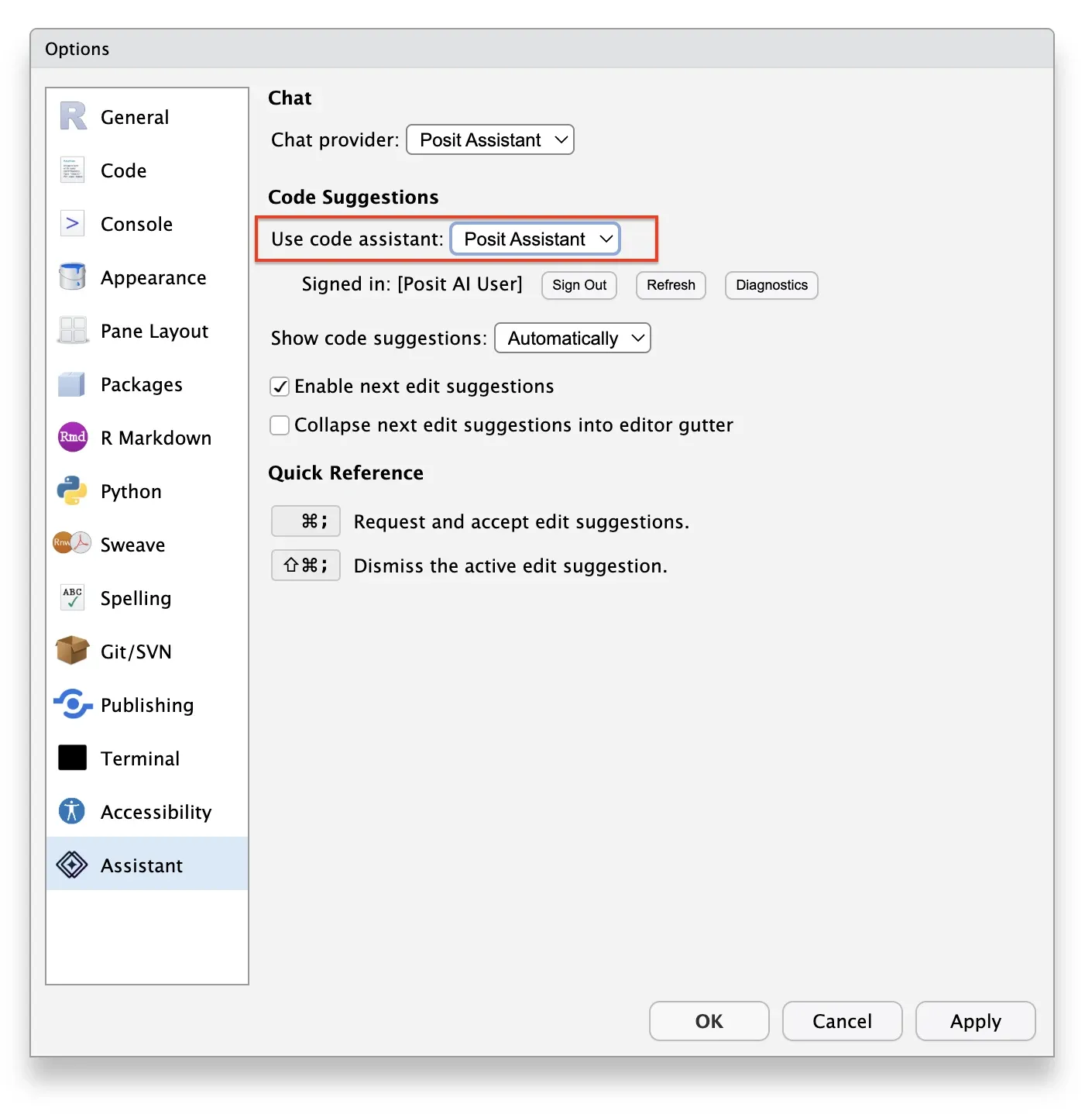
You may need to restart RStudio after enabling this feature.
Troubleshooting
- Chat not responding? Check your sign-in status via the gear icon > Configure Posit AI. Try restarting RStudio.
- Need to start fresh? Delete Posit AI binaries at
~/.local/share/rstudio/pai/(macOS/Linux) or%LOCALAPPDATA%\RStudio\pai\(Windows). Delete conversations and auth at~/.positaior%USERPROFILE%\.positai\.