Chat Features
Beyond typing messages, Posit Assistant supports file attachments, adjustable reasoning depth, and web search.
File Attachments
There are several ways to include files in your messages:
Uploading Files
- Drag and drop — Drag files directly into the chat input area.
- Paste images — Paste images from your clipboard (Cmd+V / Ctrl+V).
- Paperclip button — Click the paperclip icon in the chat input to open a file picker.
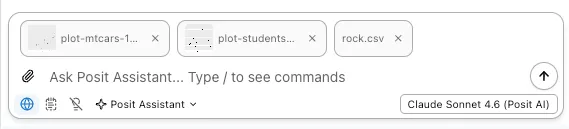
Uploaded files appear as thumbnails in the input area.
Referencing Workspace Files
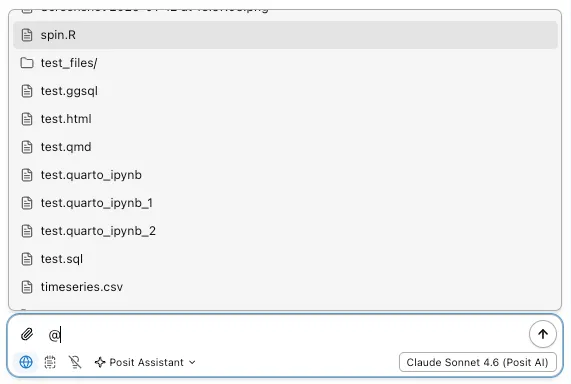
Type @ in the chat input to open the file mention menu. This lets you reference files and directories from your workspace without uploading them:
- Start typing a path to filter results (e.g.,
@src/utils) - Use arrow keys to navigate and Enter to select
- Directories appear with a folder icon and trailing slash
- Recently mentioned files are prioritized in the list
Referenced files are included as context in your message, so the assistant can read and work with them.
Supported File Types
The assistant handles different file types automatically:
- Images — Sent natively to models that support vision (PNG, JPG, GIF, WebP). The assistant can see and analyze the image directly.
- Documents — Sent natively to models that support document input (PDF, etc.).
- Text files — Decoded and injected as text into the conversation. Supported types include plain text, JSON, XML, and JSONL.
- Unsupported files — Rejected with an error message.
Limits
- Maximum file size: 20 MB
- Text injection limit: 200 KB. Larger text files are truncated with a notice.
Thinking Effort
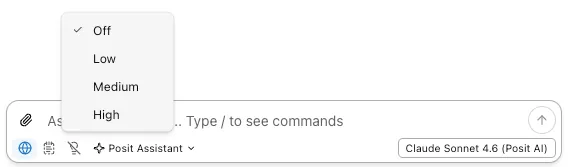
Models that support extended thinking let you control how much reasoning happens before a response. Adjust the thinking effort level from the status bar:
| Level | Behavior |
|---|---|
| Off | No extended thinking. Fastest responses. |
| Low | Light reasoning for straightforward tasks. |
| Medium | Balanced reasoning. Default when thinking is enabled. |
| High | Deep reasoning for complex problems. Slower but more thorough. |
Available levels depend on the model. Not all models support thinking — the toggle only appears when the current model supports it.
Web Search
Some models support web search. When enabled, the assistant can search the web to find current information, documentation, or answers to questions outside its training data.
Toggle web search on or off using the globe icon in the chat input area. If enabled, the model decides when to search based on your question.

Web search requires model support. The toggle only appears when the current model and provider support it.
Search results appear inline in the assistant’s response with citation links to the source URLs.