SAS Viya with OAuth Tokens
In this variant, R and Python code sends SAS work to SAS Viya 4. Posit Workbench or Posit Connect signs the user in to SAS Logon and gives the code a SAS Viya access token. The code passes the token to saspy, swat, or sasctl and never handles a password.
For the libraries and the overall pattern, see Scenario 3: SAS in Your R and Python Code.
What You Get
- No sign-in in code: users sign in to SAS Viya once in Workbench, and their code reads a short-lived token.
- The same sign-in for the Positron SAS extension: a SAS Viya console in Positron uses the same Workbench integration. See Remote SAS Viya.
- The user's own SAS Viya identity: SAS Compute sessions, SAS Cloud Analytic Services (CAS) sessions, and SAS Viya web service calls run with the permissions of the signed-in user.
- Token refresh in Workbench: Workbench refreshes the token when SAS Logon issues a refresh token. Code asks Workbench for a token each time it connects.
- Per-viewer access on Connect: with a Viewer integration, each viewer of a Shiny app runs SAS as themselves.
- Shared access on Connect: with a Service Account integration, rendered and scheduled content runs SAS with one shared identity.
Requirements
- SAS Viya 4 with the Compute service, reachable over HTTPS from Workbench sessions and Connect content
- A SAS Viya administrator who can register OAuth clients in SAS Logon
- saspy for SAS Compute, swat for CAS, or sasctl for SAS Viya web services
- For Workbench:
- Workbench with Custom OAuth integrations (a Preview feature in the Enhanced and Advanced tiers)
- HTTPS access to Workbench, and the Job Launcher with
launcher-sessions-callback-addressset - RStudio Pro, Positron Pro, or VS Code sessions. Custom OAuth credentials do not reach JupyterLab sessions.
- R: the rstudioapi package. Python: the posit-sdk package, with Workbench 2026.01.0 or later.
- For Connect:
- OAuth integrations, which need the Enhanced or Advanced tier
- R: the connectapi package. Python: the posit-sdk package.
Set Up
Register OAuth Clients in SAS Logon
Register one SAS Logon client for Workbench and another for Connect. Separate clients let SAS Viya audit logs show which product made each call.
A SAS Viya administrator registers each client with a POST to https://viya.example.com/SASLogon/oauth/clients. The request needs an administrator token with the clients.write scope. The following body registers the Workbench client:
{
  "client_id": "posit-workbench",
  "client_secret": "CLIENT_SECRET",
  "scope": ["openid", "sas-compute.user_impersonation"],
  "authorized_grant_types": ["authorization_code", "refresh_token"],
  "redirect_uri": ["https://workbench.example.com/oauth_redirect_callback"],
  "access_token_validity": 36000,
  "refresh_token_validity": 86400,
  "autoapprove": ["openid", "sas-compute.user_impersonation"]
}
redirect_uri: for Workbench,https://workbench.example.com/oauth_redirect_callback. The path is fixed and does not contain the integration name.authorized_grant_types:authorization_codefor the sign-in, andrefresh_tokenso that Workbench can renew the access token.scope:openidandsas-compute.user_impersonation.autoapprove: skips the SAS Logon consent page for these scopes.access_token_validityandrefresh_token_validity: lifetimes in seconds. Choose values that match your security policy.
Register the Connect client the same way, with these differences:
- Use a different
client_id, such asposit-connect. - Set
redirect_uritohttps://connect.example.com/__oauth__/integrations/callback. If a proxy serves Connect under a path, include it, for examplehttps://posit.example.com/connect/__oauth__/integrations/callback. - For a Service Account integration, add
client_credentialstoauthorized_grant_types. Connect Service Account integrations use the OAuth client credentials grant.
A token from the client credentials grant identifies the OAuth client, not a person. Confirm with your SAS Viya administrator that SAS Compute accepts such a token, and which identity the Compute session runs as. SAS Compute might need a compute context that runs as a shared account.
Configure the Workbench User OAuth Provider
Add a section for SAS Viya to /etc/rstudio/oauth-clients.conf:
[sas-viya]
name=SAS Viya
client-id=posit-workbench
client-secret=CLIENT_SECRET
authorize-url=https://viya.example.com/SASLogon/oauth/authorize
token-url=https://viya.example.com/SASLogon/oauth/token
scopes=openid,sas-compute.user_impersonation
The scopes value is a comma-separated list. For several SAS Viya deployments, add one section for each, such as [sas-viya] and [sas-viya-test], each with its own SAS Logon client.
The Positron SAS extension finds this integration by its token-url. Use the same SAS Viya host name in token-url as in the users' SAS Viya profiles.
Restrict the file permissions, because it contains the client secret, and reload Workbench:
sudo chmod 600 /etc/rstudio/oauth-clients.conf
sudo chown rstudio-server:rstudio-server /etc/rstudio/oauth-clients.conf
sudo rstudio-server reload
Create the Connect OAuth Integrations
Create Custom OAuth integrations in Connect that point to SAS Logon. Most deployments create two integrations from the same SAS Logon client:
- SAS Viya (Viewer): each viewer signs in with their own SAS Viya identity. It works only with interactive content, such as Shiny apps.
- SAS Viya (Service Account): all viewers share one token. It works with interactive and rendered content, such as Quarto documents and scheduled reports.
An administrator creates the integrations in the Connect dashboard or through the Connect Server API. The following request body creates the Viewer integration with a POST to /__api__/v1/oauth/integrations:
{
  "name": "SAS Viya (Viewer)",
  "template": "custom",
  "config": {
    "auth_type": "Viewer",
    "auth_mode": "Confidential",
    "use_pkce": true,
    "authorization_uri": "https://viya.example.com/SASLogon/oauth/authorize",
    "token_uri": "https://viya.example.com/SASLogon/oauth/token",
    "client_id": "posit-connect",
    "client_secret": "CLIENT_SECRET",
    "scopes": "openid sas-compute.user_impersonation",
    "token_endpoint_auth_method": "client_secret_post"
  }
}
For the Service Account integration, set auth_type to Service Account and remove auth_mode and use_pkce. Those two options apply only to Viewer integrations.
Publishers then add an integration to each content item. In the content settings, open the Runtime tab, and under Integrations, click Add Integrations. Rendered content offers only Service Account integrations.
Use It
In a Workbench Session
- On the Workbench homepage, click your user name, then Settings, then Managed Credentials.
- Under Custom OAuth, sign in to SAS Viya. Positron Pro and VS Code users can also sign in from the Available Credentials view.
- Click the information icon next to SAS Viya and copy the Integration ID.
- Store the ID in an environment variable, such as
SAS_VIYA_INTEGRATION_IDin.Renvironor.env.
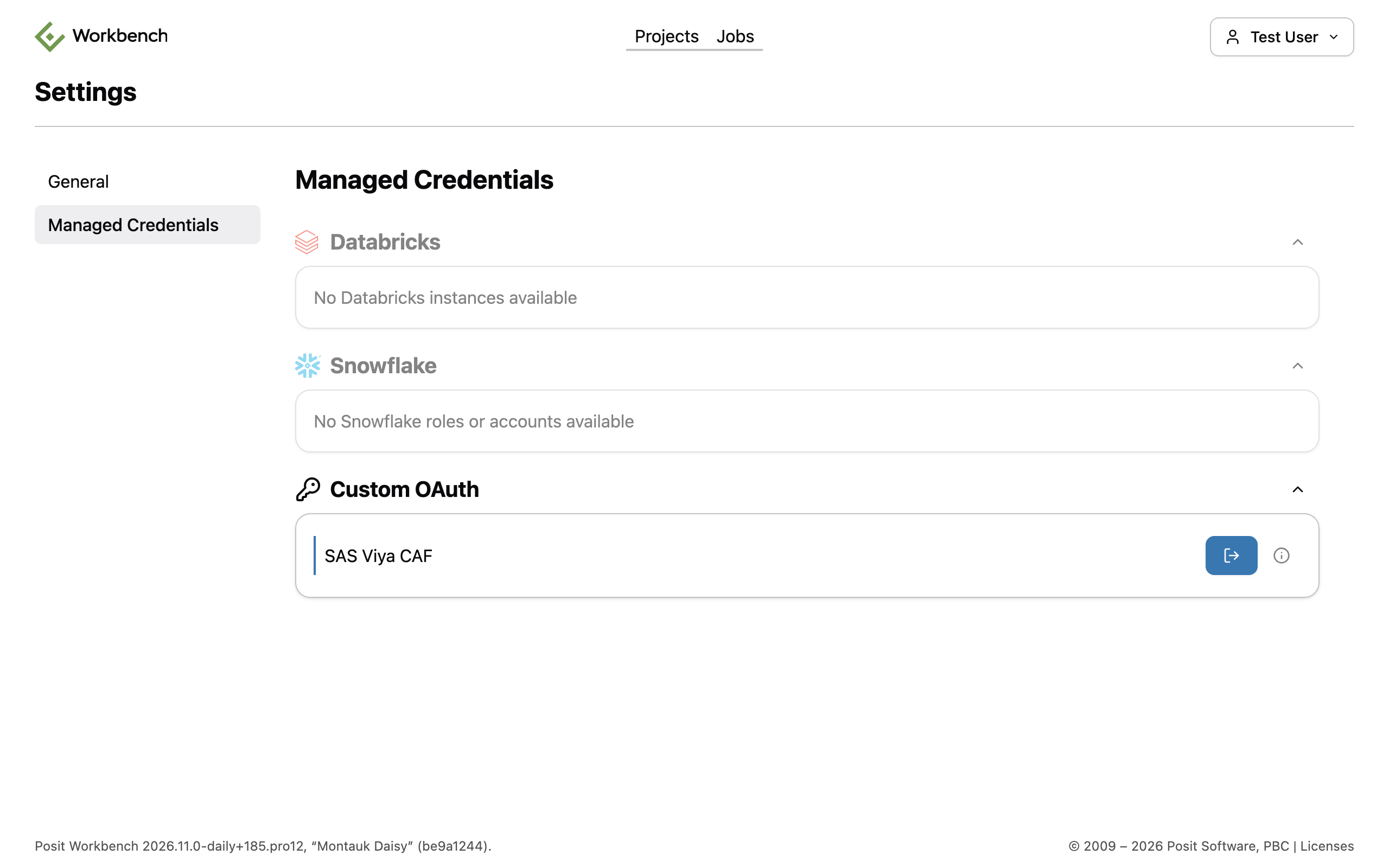
The Managed Credentials page in Workbench. Under Custom OAuth, the SAS Viya integration is signed in, and its button signs the user out.
Once you are signed in, new sessions receive the credential automatically. The New Session dialog lists it under Session Credentials, in Custom OAuth Credentials.
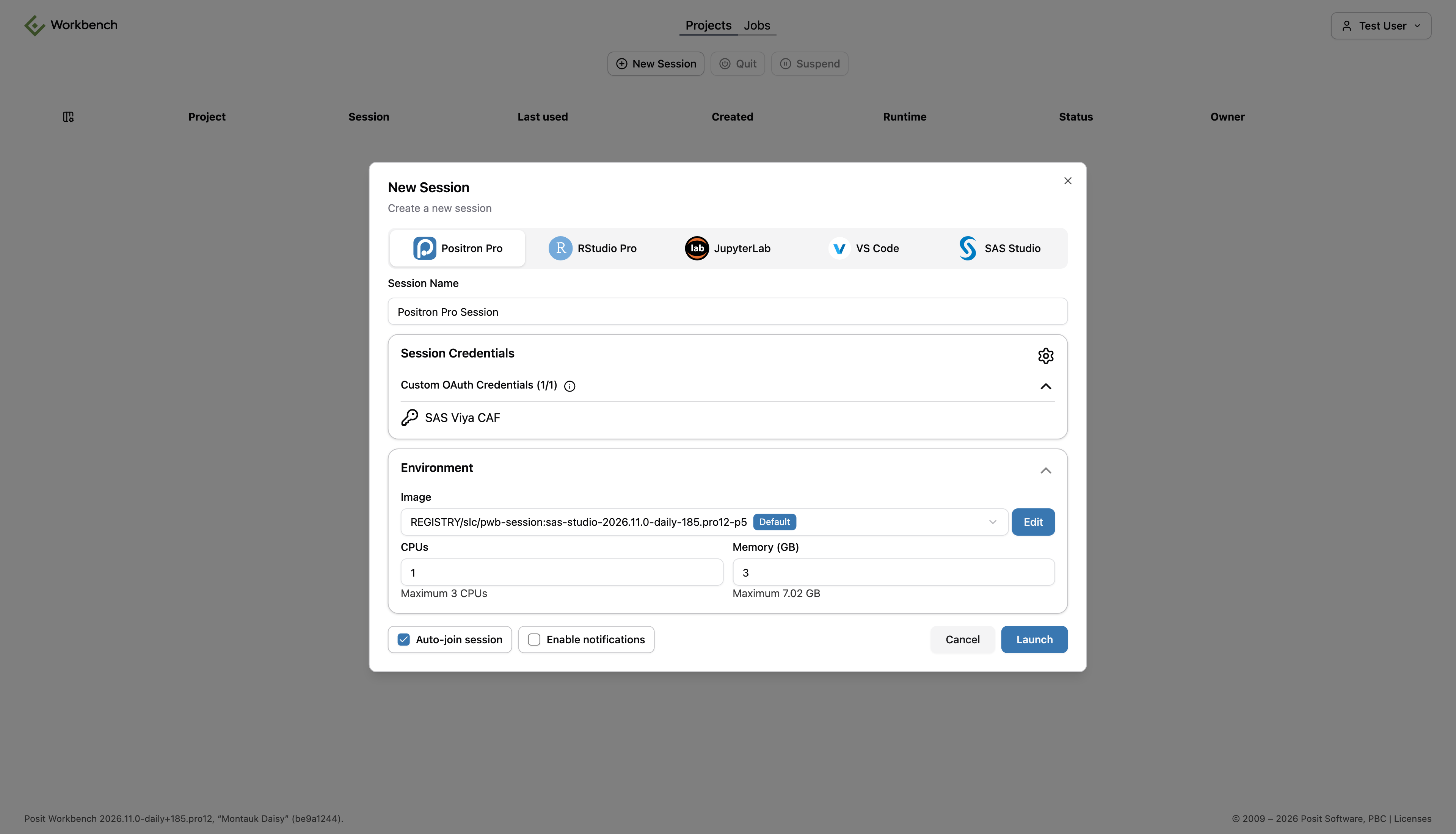
The New Session dialog with the Custom OAuth Credentials section expanded, listing the SAS Viya integration.
The integration ID stays the same between sessions. Code can also look it up by name with rstudioapi::findOAuthIntegration(name = "^SAS Viya$") in R, or Client().oauth.integrations.find_by(name="^SAS Viya$") in Python.
Python with saspy
saspy accepts a SAS Logon access token through its authtoken option. The viya definition in sascfg_personal.py needs only url and context:
import os
import saspy
from posit.workbench import Client

creds = Client().oauth.get_credentials(audience=os.environ["SAS_VIYA_INTEGRATION_ID"])

sas = saspy.SASsession(cfgname="viya", authtoken=creds["access_token"])
print(sas.submitLOG("proc options option=work; run;"))
sas.endsas()
get_credentials() returns None when the user has not signed in to the integration.
R with sasquatch
sas_connect() passes only cfgname to saspy, so the token must come from the saspy configuration. This sascfg_personal.py reads the token from a variable in the Python main module each time a session starts:
import __main__

SAS_config_names = ['viya']

def __getattr__(name):
    # saspy looks up the definition by name for each SASsession
    if name == 'viya':
        return {'url':       'https://viya.example.com',
                'context':   'SAS Studio compute context',
                'authtoken': getattr(__main__, 'SAS_VIYA_TOKEN', None)}
    raise AttributeError(name)
R code gets the token from Workbench and sets that variable on the Python main module through reticulate. py_set_attr() does this in one call. The shorter reticulate::py$SAS_VIYA_TOKEN <- ... fails in R, because R cannot assign to a name with a package prefix.
library(sasquatch)

creds <- rstudioapi::getOAuthCredentials(
  audience = Sys.getenv("SAS_VIYA_INTEGRATION_ID")
)
reticulate::py_set_attr(reticulate::import_main(), "SAS_VIYA_TOKEN", creds$access_token)

sas_connect(cfgname = "viya", reconnect = TRUE)
sas_from_r(mtcars, "cars")
sas_run_string("proc means data=cars; var mpg; run;")
sas_disconnect()
getOAuthCredentials() throws an error when the user has not signed in to the integration.
The following screenshot shows the same steps in a Positron Pro session. It runs the plot.sas program from the demo repository on SAS Viya, with sas_run_string(). The Viewer pane shows the plot and the table that the program creates.
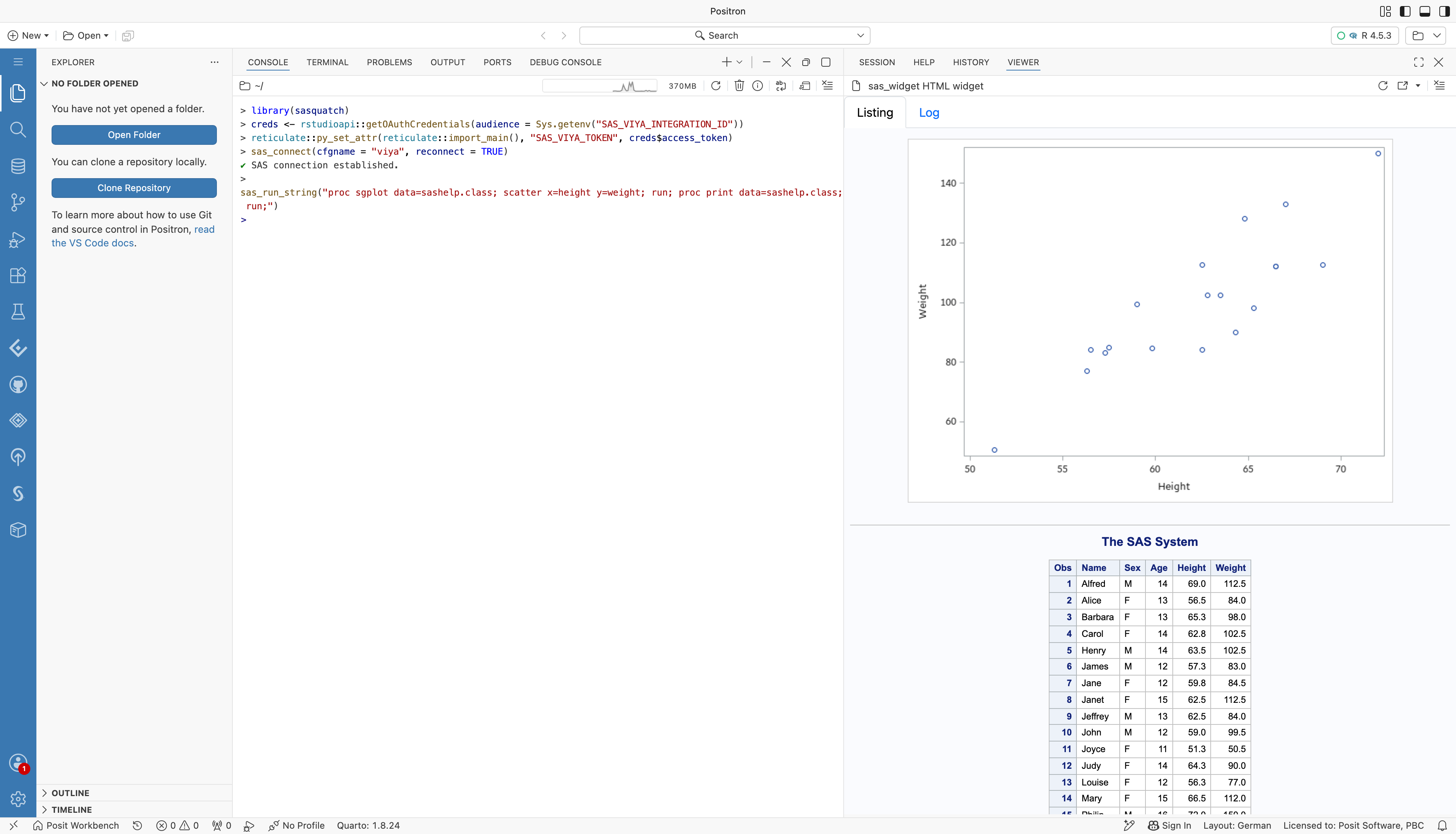
An R console in Positron running sasquatch against SAS Viya. The code gets the token from Workbench, connects, and runs a SAS program. The Viewer pane shows the plot and the listing.
Python code can use the same sascfg_personal.py. An authtoken argument to SASsession() takes precedence over the configuration.
The SAS extension can export a SAS Viya profile as a saspy configuration (SAS: Export saspy Configuration). That configuration looks for a token each time saspy connects. In this order, it uses the SAS_VIYA_TOKEN environment variable, the SAS_VIYA_TOKEN variable on the Python main module (as above), the Workbench integration read with posit-sdk (when SAS_VIYA_INTEGRATION_ID or the profile's workbenchIntegration gives its ID), and the token file ~/.positron-sas/viya-token.json. The command SAS: Save Viya Token for saspy writes that file from the extension's own sign-in, readable only by the user, so that a Quarto render can use the same sign-in. Run it again when the token has expired.
swat and sasctl
swat accepts the token as the password argument when no username is given. sasctl accepts it as the token argument:
import swat
from sasctl import Session

conn = swat.CAS("https://viya.example.com/cas-shared-default-http/",
                password=creds["access_token"])
print(conn.serverstatus())

with Session("viya.example.com", token=creds["access_token"]):
    ...  # call sasctl services here
In Content on Connect
The token comes from Connect instead of Workbench. Connect never gives refresh tokens to content.
| Viewer integration | Service Account integration | |
|---|---|---|
| Identity in SAS Viya | Each viewer | One shared identity |
| Content types | Interactive only, such as Shiny | Interactive and rendered, such as Quarto and R Markdown |
| Viewer sign-in | Each viewer signs in to SAS Viya on first visit | None |
| R function | connectapi::get_oauth_credentials() | connectapi::get_oauth_content_credentials() |
| Python function | Client().oauth.get_credentials() | Client().oauth.get_content_credentials() |
Use a Viewer integration when results depend on each viewer's SAS Viya permissions. Use a Service Account integration for rendered or scheduled content, and for content that all viewers may see with the same data.
Shiny for R with a Viewer Integration
The viewer's session token arrives in the Posit-Connect-User-Session-Token request header. Exchange it for the viewer's SAS Viya token:
library(shiny)
library(sasquatch)

server <- function(input, output, session) {
  observeEvent(input$run_analysis, {
    user_token <- session$request$HTTP_POSIT_CONNECT_USER_SESSION_TOKEN
    creds <- connectapi::get_oauth_credentials(connectapi::connect(), user_token)
    reticulate::py_set_attr(reticulate::import_main(), "SAS_VIYA_TOKEN", creds$access_token)

    sas_connect(cfgname = "viya", reconnect = TRUE)
    # ... sas_from_r(), sas_run_string(), sas_to_r() ...
    sas_disconnect()
  })
}
Shiny for Python with a Viewer Integration
import saspy
from posit.connect import Client
from shiny import App, reactive, ui

app_ui = ui.page_fluid(ui.input_action_button("run", "Run Analysis"))

def server(input, output, session):
    @reactive.effect
    @reactive.event(input.run)
    def _():
        user_token = session.http_conn.headers.get("Posit-Connect-User-Session-Token")
        creds = Client().oauth.get_credentials(user_token)
        sas = saspy.SASsession(cfgname="viya", authtoken=creds["access_token"])
        # ... sas.df2sd(), sas.submit(), sas.sd2df() ...
        sas.endsas()

app = App(app_ui, server)
Quarto and R Markdown with a Service Account Integration
Rendered content reads the content session token that Connect provides. This setup chunk works both in Workbench and on Connect:
library(sasquatch)

if (Sys.getenv("POSIT_PRODUCT") == "CONNECT") {
  creds <- connectapi::get_oauth_content_credentials(connectapi::connect())
} else {
  creds <- rstudioapi::getOAuthCredentials(
    audience = Sys.getenv("SAS_VIYA_INTEGRATION_ID")
  )
}
reticulate::py_set_attr(reticulate::import_main(), "SAS_VIYA_TOKEN", creds$access_token)

sas_connect(cfgname = "viya")
In Python, Client().oauth.get_content_credentials() returns the token. If content has more than one integration, pass the integration ID as audience to choose one.
Keep Tokens across Workbench Restarts
Workbench stores each user's OAuth tokens in its database, encrypted with the secure-cookie-key. Sessions call Workbench for a token with a cookie signed with the session-rpc-key. If Workbench creates new keys when it restarts, the stored tokens cannot be decrypted, and the integration shows "Custom OAuth integration 'sas-viya' has validation errors" until the user signs in again. Sessions that were running before the restart also cannot get tokens.
Keep both keys, and the launcher keys, the same across restarts:
- On a server installation, the keys in
/var/lib/rstudio-serverand/etc/rstudiopersist on disk. For several Workbench nodes, use the samesecure-cookie-keyon every node. - In Kubernetes with the rstudio-workbench Helm chart (checked with chart version 0.10.3), store the keys in one Kubernetes secret, with the keys
launcher.pem,launcher.pub,secure-cookie-key, andsession-rpc-key. Reference it withsecureCookieKey.existingSecretandlauncherPem.existingSecret. Addlauncher.pubandsession-rpc-keywithconfig.existingSecrets. The chart'ssecureCookieKey.valueandlauncherPem.valuesettings do not mount the keys into the pod, so Workbench creates new ones on every start.
The secure-cookie-key must be at least 32 characters long, for example from openssl rand -hex 32. Workbench does not start with a shorter key.
Limitations
- saspy uses the token for every call to the Compute service and does not renew a token that it did not request. Connect again with a fresh token when the token expires.
- sasquatch keeps one SAS session for each R process. With a Viewer integration, set Max connections per process to 1 for the Shiny app, so that viewers do not share a SAS session.
- Viewer integrations do not work with rendered content, anonymous public access, or share links.
- In Workbench Jobs, token retrieval stops working 7 days after the job is submitted.
- Custom OAuth credentials are not available in JupyterLab sessions.
- The access token's scopes limit what the code can do in SAS Viya. Confirm that the scopes you register permit CAS and SAS Viya web service calls before you rely on swat or sasctl.