Positron SAS Extension Features
The Positron SAS extension adds SAS to Positron as a language with its own console. SAS code runs in that console, and its results go to the usual Positron panes: the Viewer, the Plots pane, the Data Explorer, and the Connections pane. Posit Assistant can see the results and explore SAS data.
The extension works with SAS Viya, with SAS 9.4 or SAS Analytics Pro over SSH, and with a local SAS installation. Some features depend on the connection type. See Features by Connection Type for details.
The SAS Extension for Positron extends the SAS Extension for Visual Studio Code, so the rest of this documentation still applies in Positron. Connection profiles, code editing features such as syntax highlighting, completion, snippets, and folding, SAS Content, SAS Server, libraries, and SAS notebooks work as described there. This page covers what Positron adds or changes. To run SAS in Posit Workbench, see SAS with Posit Workbench.
SAS Console
Each entry in the SAS.connectionProfiles setting becomes a runtime named SAS (profile) in the Positron interpreter picker. Configuring the SAS Extension describes how to create profiles. In Positron, the commands described in Running SAS Code and Fixing Errors and Warnings send code to the SAS console, and results open in the Viewer pane instead of a Result tab.
- Start a console: pick a SAS runtime in the interpreter picker. When a
.sasfile becomes the active editor and no SAS console runs, Positron starts the preferred SAS runtime. - Run code from the editor: Run All SAS Code, Run Selected or All SAS Code, and Run Region send the code to the SAS console, as Positron does for R and Python.
- Run code in the console: type SAS code at the
sas>prompt. A statement is complete when it ends with a semicolon. - Read the log: the console shows the full SAS log of your code: the source, notes, warnings, and errors. Lines from the code that the extension wraps around yours are hidden. The same lines go to the SAS Log output channel.
- Find problems: for code run from a
.sasfile, errors and warnings from the log appear as squiggles in the editor and in the Problems pane. TheSAS.problems.log.enabledsetting turns this off. Code typed into the console or generated by Posit Assistant reports problems in the console only. - See a summary: a run with errors ends with a SAS Error message that lists the error lines. A run with only warnings ends with a warning count.
- Interrupt: the console interrupt button cancels the running code on SAS Viya. Over SSH and stdio, SAS cannot cancel a submission: the console stays busy until the code finishes, and a message offers Restart Session, which stops SAS.
Each console connects with the profile of the runtime you picked, and each console has its own SAS session. You can run several SAS consoles side by side, for example local SAS and SAS Viya, and shutting one down does not affect the others. The Data Explorer, the SAS data file viewers, and Posit Assistant work with the console in the foreground.
SAS Viya Sign-In
In Posit Workbench, a SAS Viya profile signs in with the token of a Workbench OAuth integration for SAS Viya, so users sign in to SAS Viya once, on the Workbench homepage. Without a matching integration, or outside Workbench, the extension signs in with SAS Logon in the browser. The profile settings authentication and workbenchIntegration control this. See Remote SAS Viya.
Results in the Viewer and Plots Pane
The extension wraps each submission in SAS Output Delivery System (ODS) HTML5 output, with graphs drawn as inline PNG images.
- Viewer: each run's HTML report opens in the Viewer pane as a file named
sas-output-<n>.html. In Positron builds that cannot open HTML files in the Viewer, the report opens in a SAS Output panel. - Plots pane: each graph also goes to the Plots pane. The Plots pane opens after the report, so a run with graphs ends with the plot in front.
- Text copy for Posit Assistant: each run's result also carries a plain-text copy of the report, with titles and tables. The console shows only a short note that names the panes with the output.
If your code opens its own ODS HTML or HTML5 destination, the extension does not add its own ODS statements.
Data Explorer
SAS datasets and views open in the Positron Data Explorer. Open one from the Connections pane, the Data Connections pane, or a .sas7bdat or .xpt file. The Data Explorer runs its queries as SAS code in the console session.
The following screenshot shows SASHELP.CLASS, opened from the Data Connections pane of a SAS Viya console. Right-click a table and choose Open in Data Explorer. The summary panel on the left lists the columns with a histogram and the share of missing values for each. The grid on the right shows the rows.
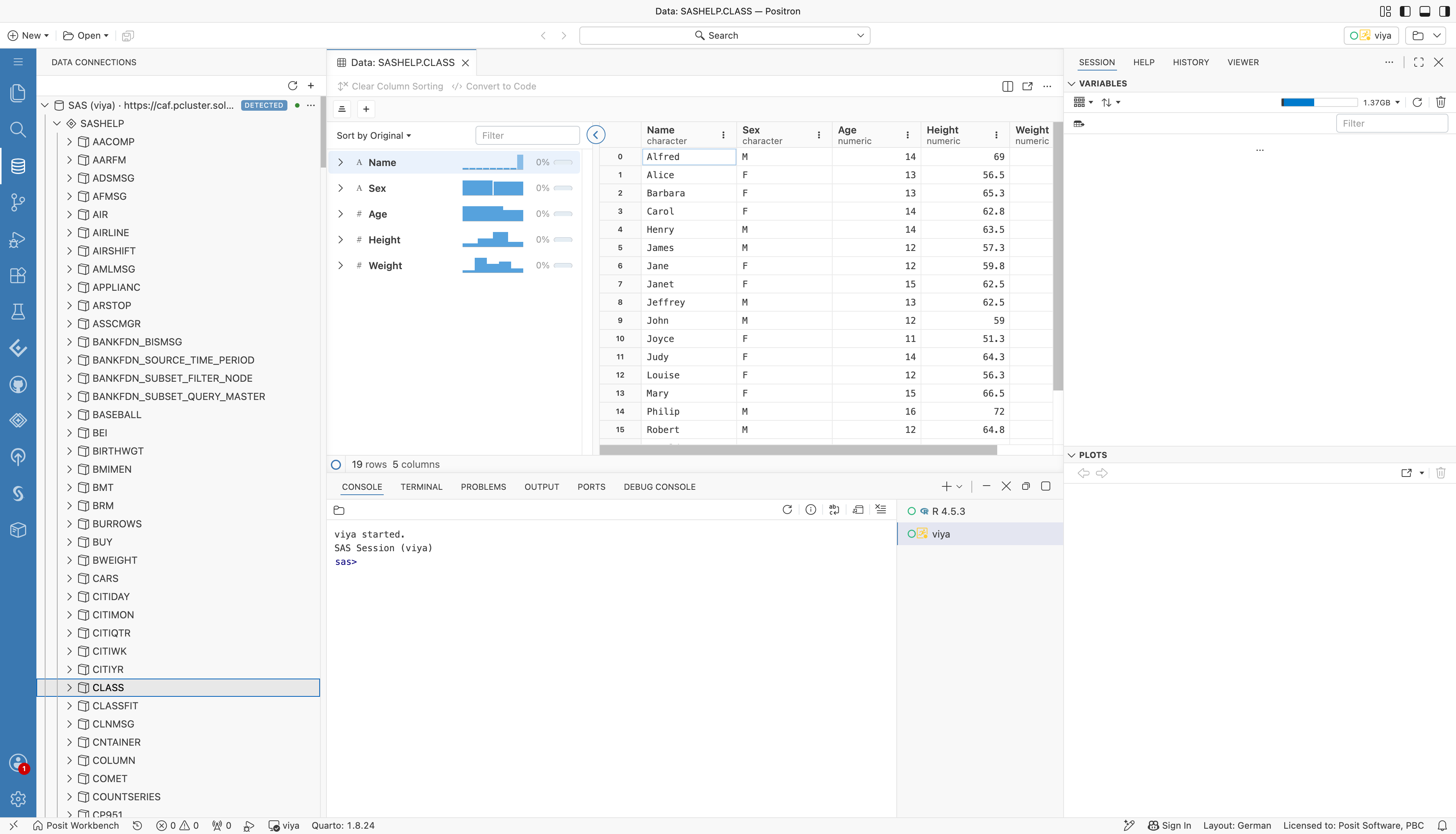
The Data Connections pane next to the Data Explorer for SASHELP.CLASS. The summary panel lists the five columns, and the grid shows the rows.
- Sorting: sort by one or more columns.
- Row filters: compare (
=,!=,<,<=,>,>=), between, not between, is missing, is not missing, is empty, is not empty, is true, is false, set membership, and text search. Text search supports contains, does not contain, starts with, ends with, and regular expression match, with or without case sensitivity. - Column profiles: missing-value counts, summary statistics, histograms for numeric columns, and frequency tables.
- Dates: numeric columns with a SAS date format (for example
DATE9.orYYMMDD10.) are date columns. Columns withDATETIMEorDATEAMPMformats are datetime columns. Positron offers date-range filters for both. - Convert to Code: creates a
PROC SQLquery that selects the dataset with the current filters and sort order.
Expand a column in the summary panel to see its profile. This one shows the Height column of SASHELP.CLASS, with its histogram, the number of missing values, and summary statistics.
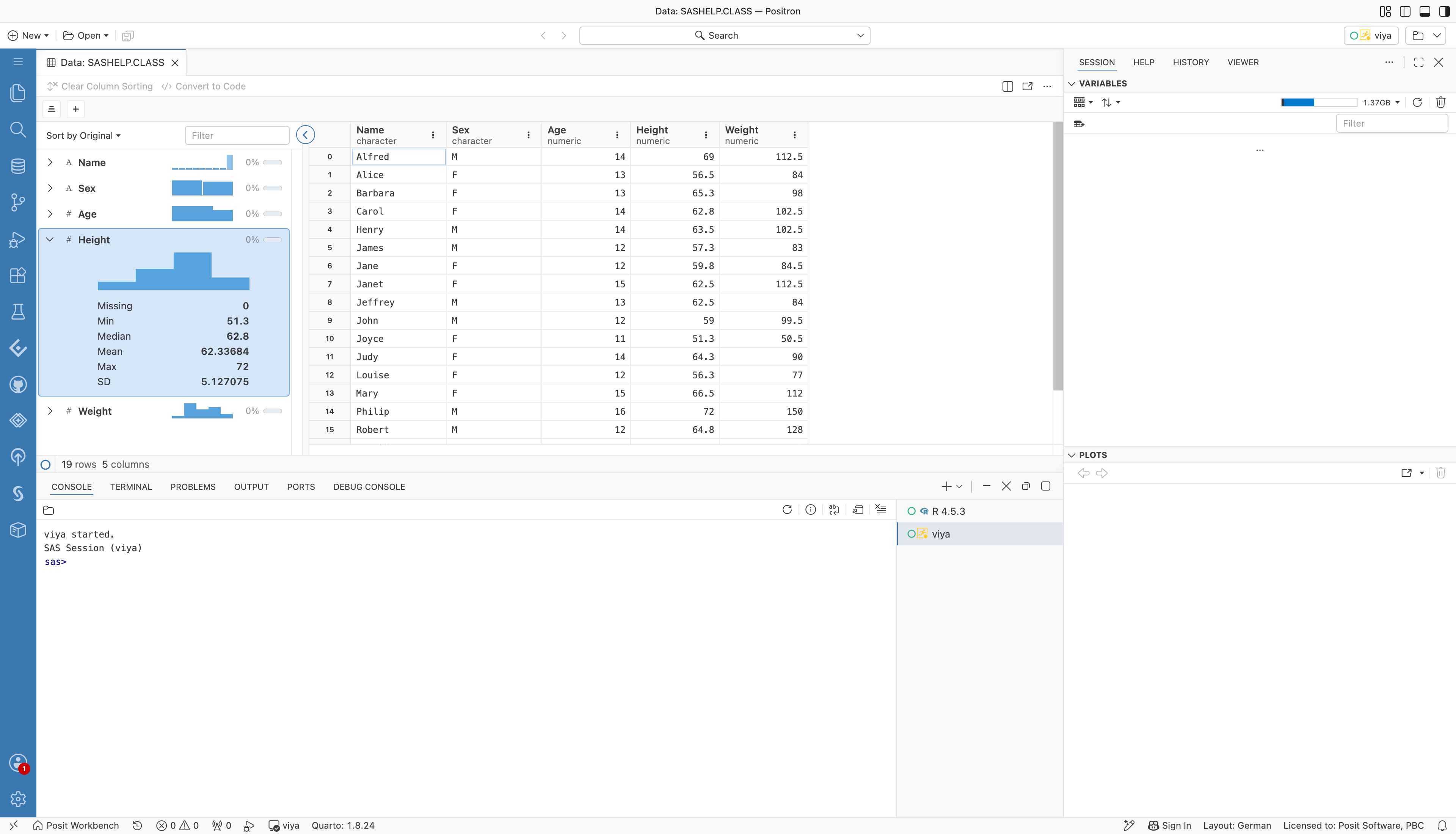
The Data Explorer with the Height column expanded in the summary panel. It shows a histogram and the missing count, minimum, median, mean, maximum, and standard deviation.
Sort and filter from the column menu or the filter bar. The next screenshot sorts Height in descending order and keeps the rows where Height > 60. The status line shows that 12 of the 19 rows remain.
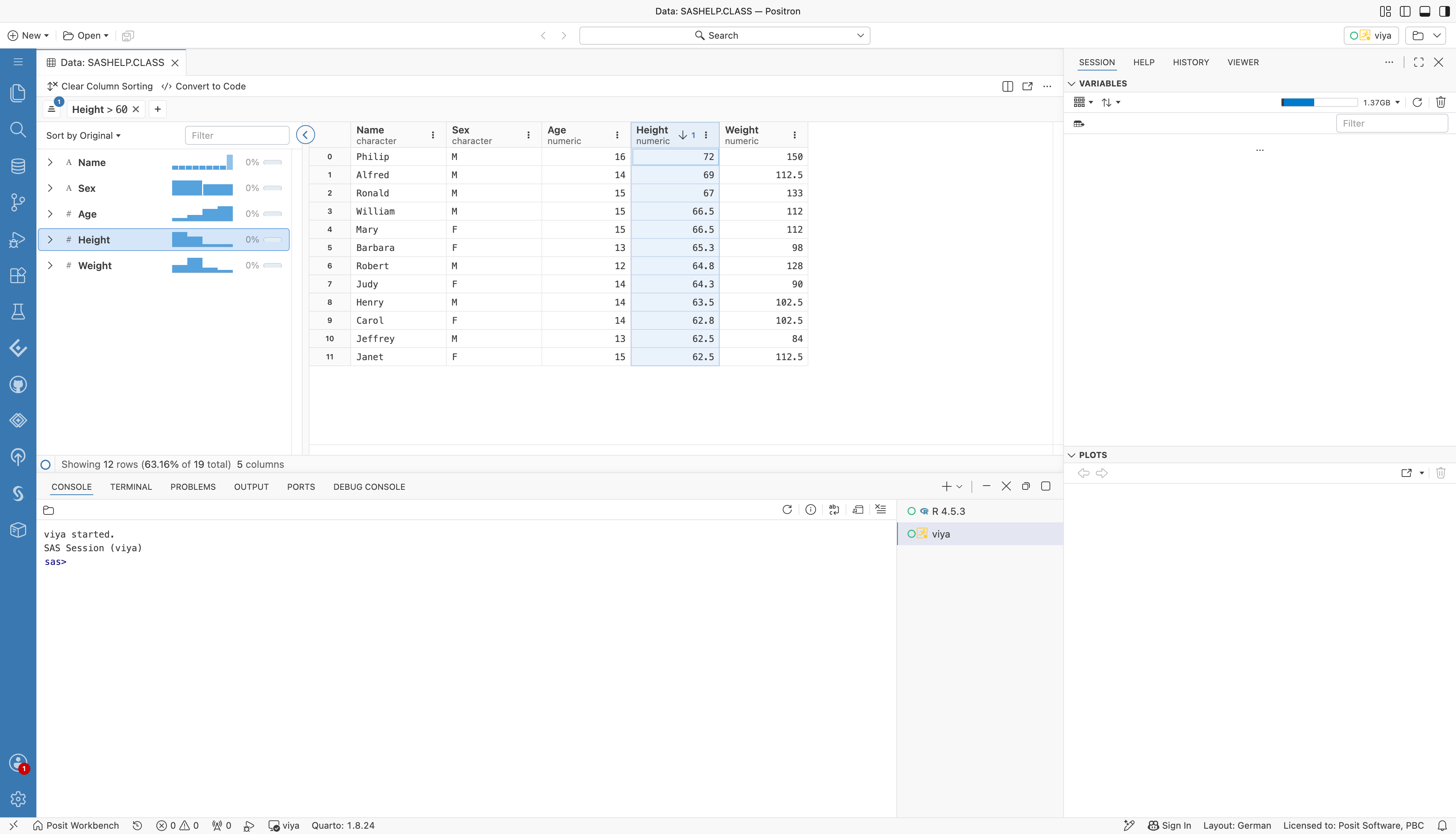
The Data Explorer with Height sorted in descending order and the filter Height greater than 60. The status line shows 12 rows of 19.
Convert to Code turns the current filters and sort order into code. The dialog offers the syntax to use, and here it shows the PROC SQL query for the view above. Copy Code copies it to the clipboard.
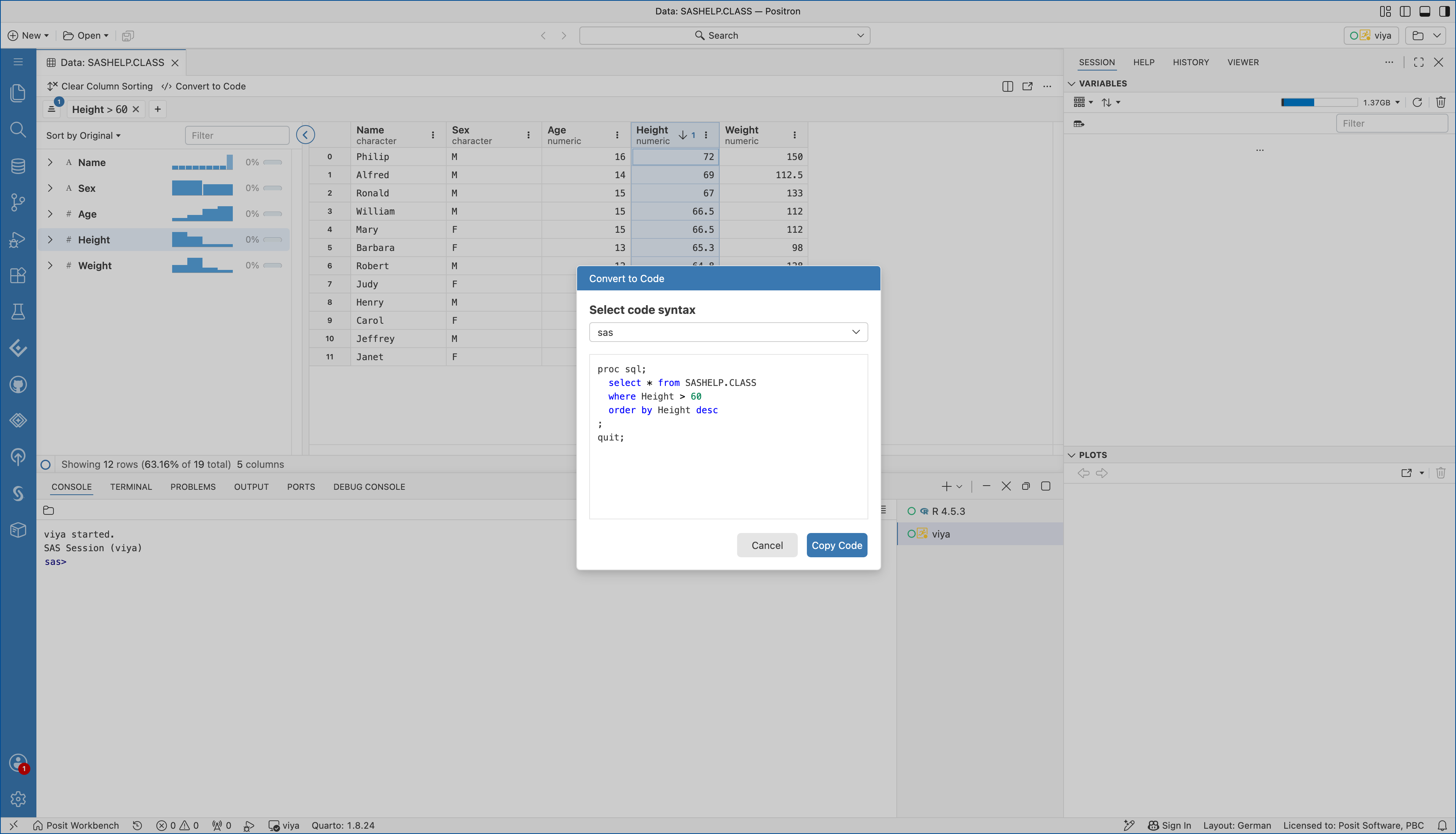
The Convert to Code dialog with the code syntax sas, showing a PROC SQL query that selects from SASHELP.CLASS where Height is greater than 60, ordered by Height descending.
The Data Explorer refreshes its row counts after each console run.
Connections
The extension lists the libraries of the running SAS session in Positron. Which pane it uses depends on the Positron version.
- Connections pane: in Positron 2026.09 and earlier, or when the Positron setting
dataConnections.enabledis off, a SAS (profile) connection appears in the Connections pane. It shows libraries, their tables and views, and the columns with their types. Select the preview icon of a table to open it in the Data Explorer. The tree refreshes after each console run. - Data Connections pane: in Positron 2026.10 and later with the Positron setting
dataConnections.enabledturned on, the Data Connections pane lists a SAS (profile) connection for each running SAS console. It shows the same library tree, and preview opens a table in the Data Explorer. Positron readsdataConnections.enabledat startup, so restart Positron after you change it. - SAS Server Files: on SAS Viya, a read-only SAS Server Files (profile) connection browses the file system of the compute session. The
fileNavigationRootandfileNavigationCustomRootPathprofile settings set its root folder. In the Data Connections pane, text files up to 512 KB show their content in the details view. In the Connections pane, previewing a file opens it in an editor.
The Libraries view that Accessing Libraries and Tables describes is hidden in Positron, because the Connections and Data Connections panes replace it. On SAS Viya, the SAS Content and SAS Server views stay in the SAS sidebar, as described in Accessing SAS Content and Accessing SAS Server.
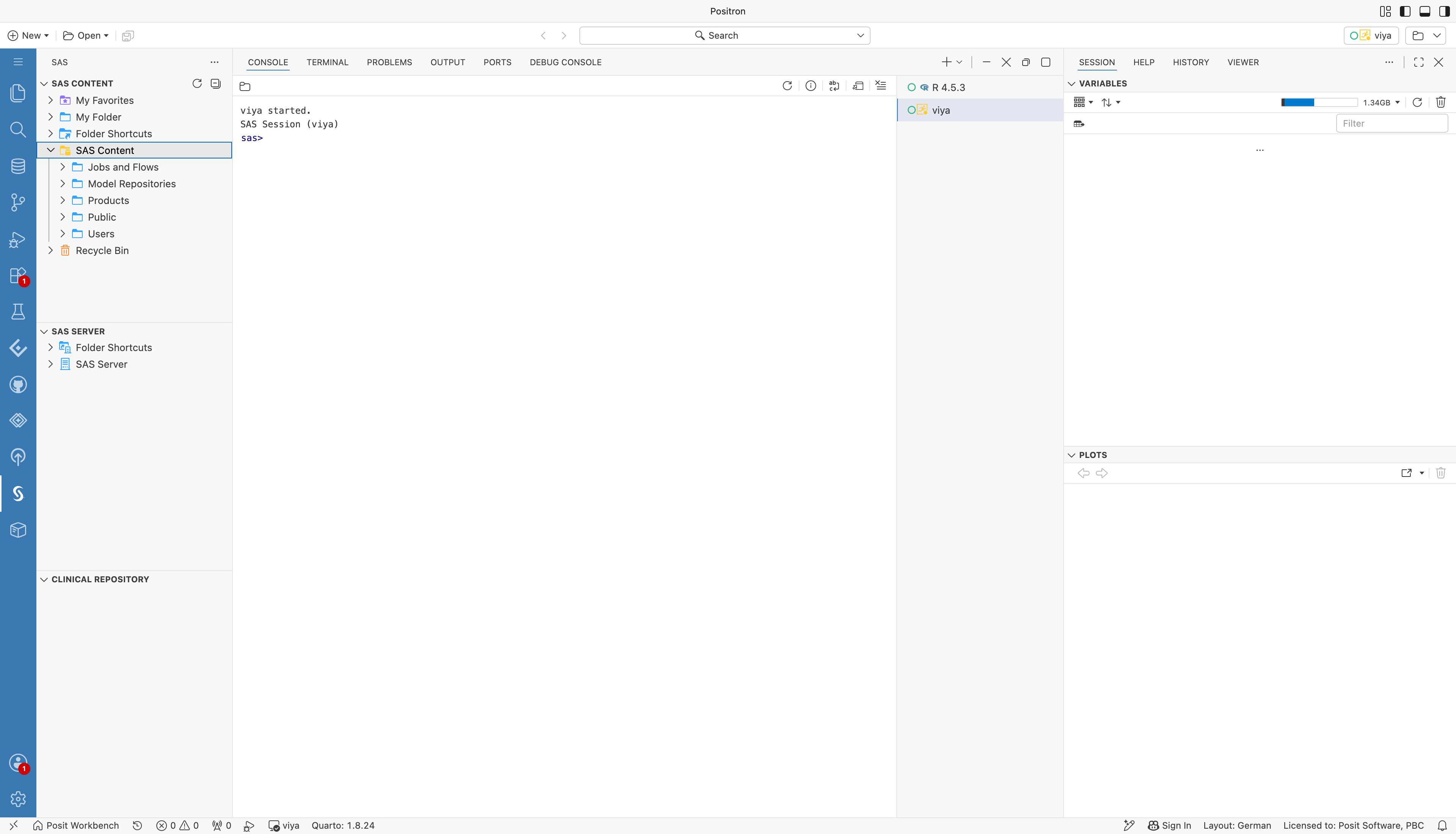
The SAS sidebar on SAS Viya with the SAS Content view expanded. It lists the folders Jobs and Flows, Model Repositories, Products, Public, and Users.
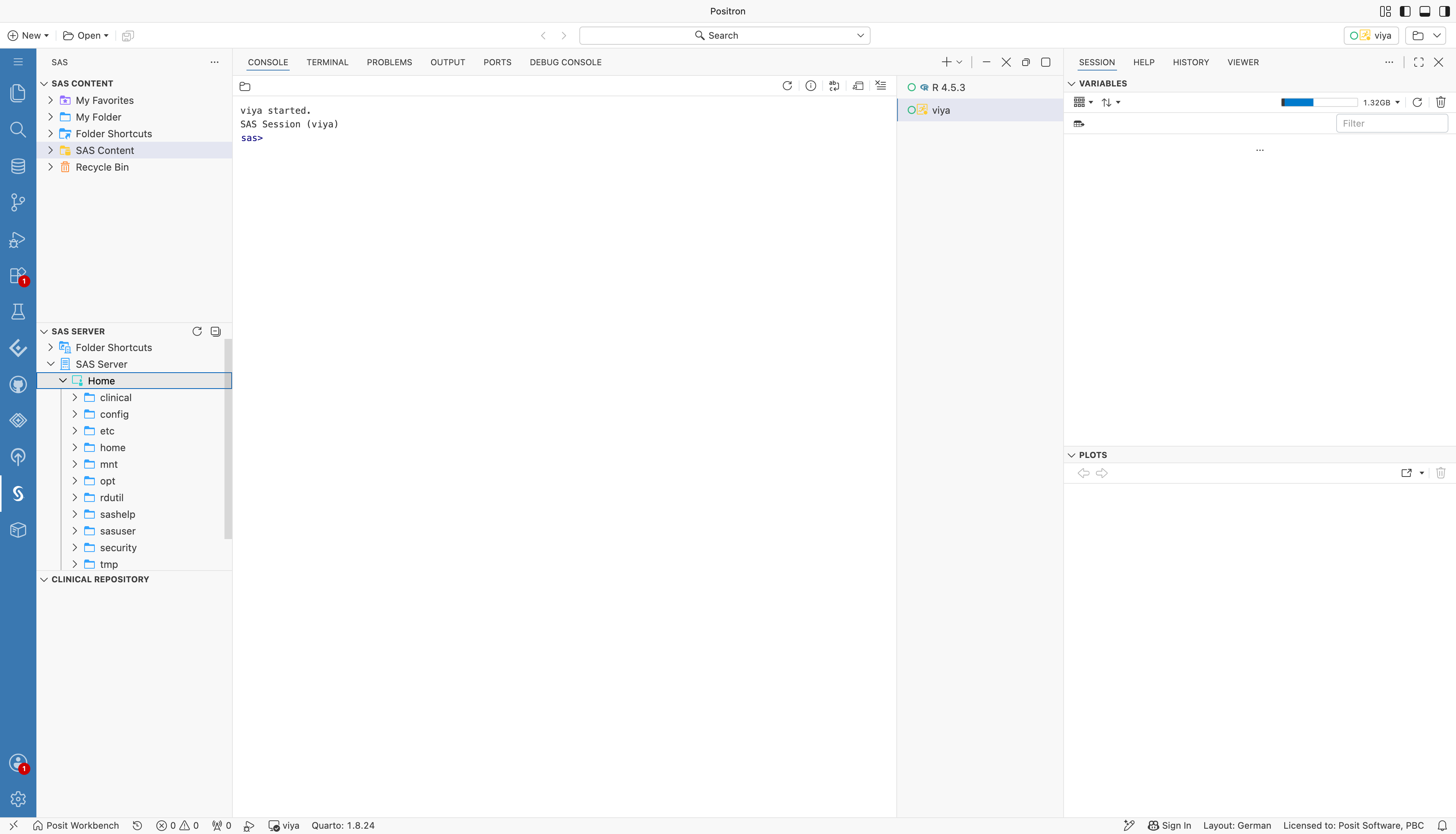
The SAS sidebar on SAS Viya with the SAS Server view expanded to the Home folder of the compute session.
SAS Data Files
The extension opens .sas7bdat and .xpt files in the Data Explorer. Open the file from the Explorer, or from a view such as the Clinical Repository.
- Datasets: for a
.sas7bdatfile on disk, the extension assigns a library to the file's folder with aLIBNAMEstatement. - Transport files: for an
.xptfile, the extension detects the format from the file header: XPORT version 5, XPORT version 8 or 9, orPROC CPORT. It unpacks the file into a library in the WORK folder of the session. - Several datasets: when a transport file holds more than one dataset, a picker asks which ones to open.
- Files from other views: files that are not on disk, such as files from the Clinical Repository or SAS Content views, are copied into the WORK folder first. This copy also works when SAS runs in lockdown mode.
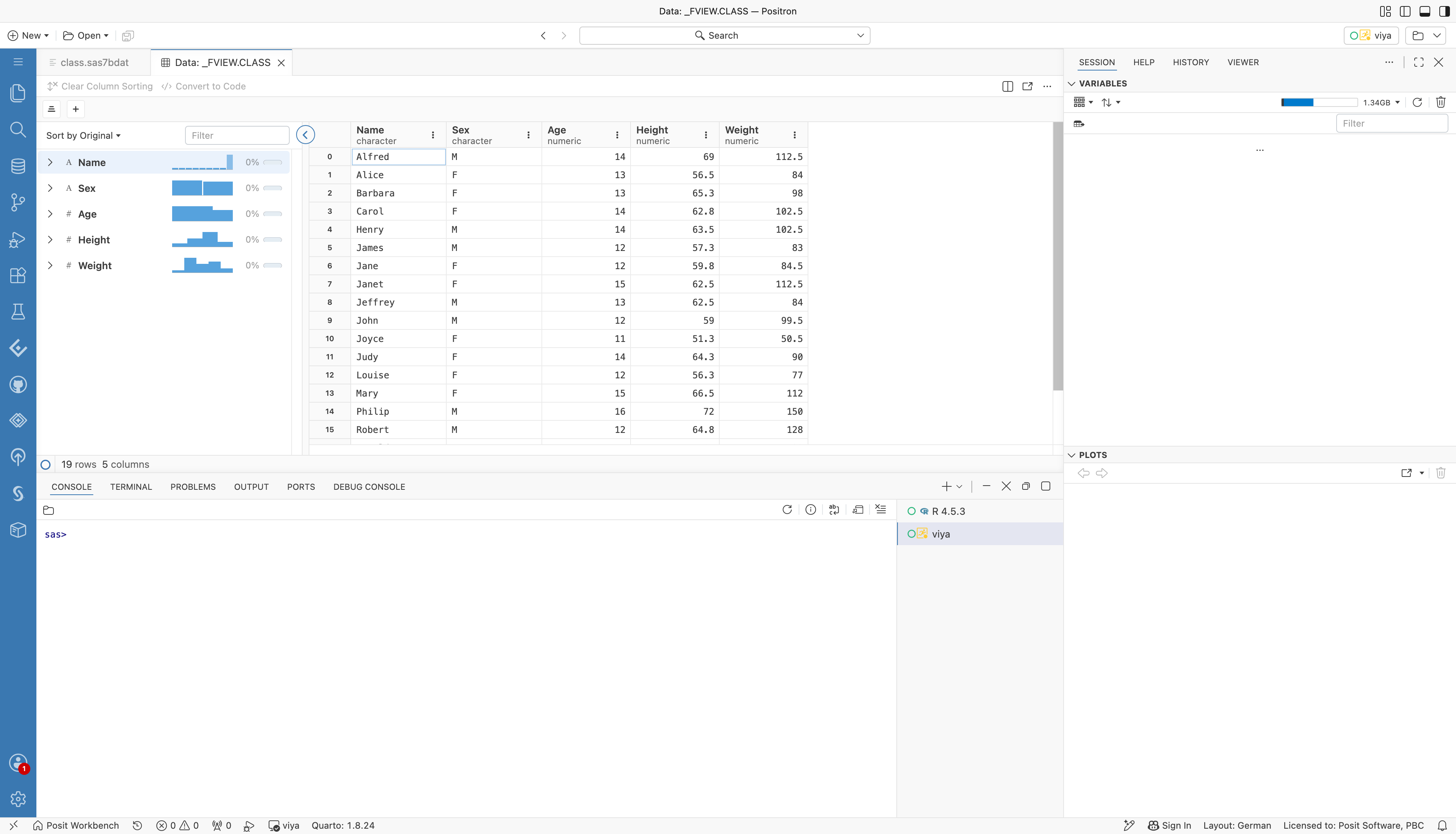
The file class.sas7bdat opened in the Data Explorer through a SAS (viya) console. The extension assigned the library _FVIEW to the file's folder.
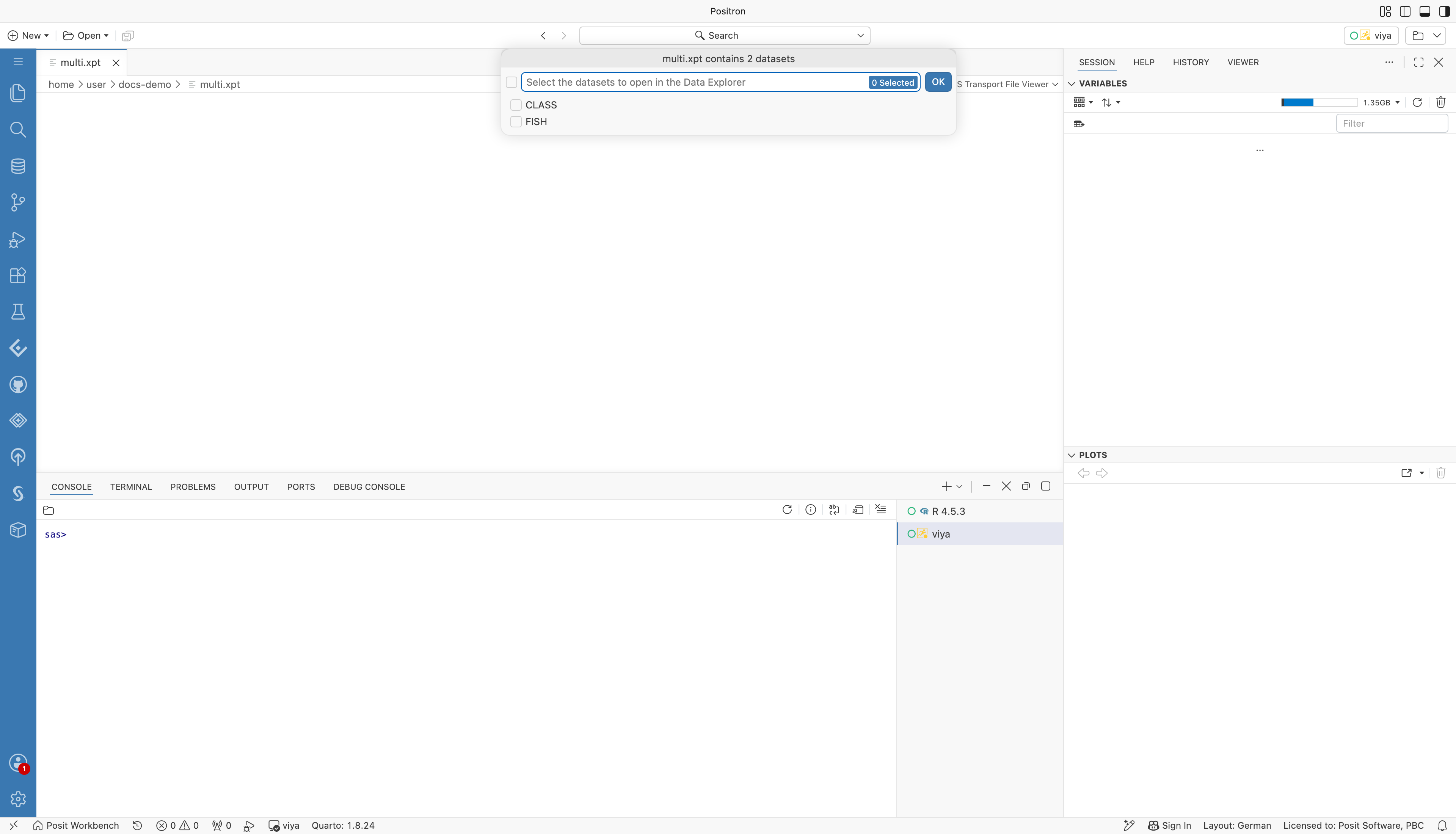
The dataset picker for a transport file with two datasets, CLASS and FISH.
SAS data files open through the SAS session, so a SAS console must run first. For files on disk, SAS reads the path itself, so the SAS server must be able to see the same path.
Posit Assistant
The extension gives Posit Assistant access to the SAS session and its results.
- Language model tools:
sas_list_librarieslists the libraries of the session.sas_list_tableslists the datasets and views in a library.sas_describe_tablereturns the columns, types, lengths, formats, and row count of a dataset.sas_export_saspy_configreturns the active profile as a saspy configuration, for SAS code chunks in Quarto documents with the sasquatch R package. Posit Assistant uses the commands below instead.
- Commands for Quarto reports:
- SAS: Export saspy Configuration writes the active profile as
sascfg_personal.py, next to the open.qmdfile or in the workspace folder. It never asks before replacing a different file: it keeps the old one assascfg_personal.py.old-<timestamp>next to it and tells you where. For a SAS Viya profile, the file uses saspy's HTTP access method and looks for the access token each time saspy connects: theSAS_VIYA_TOKENenvironment variable, a variable on the Python main module, the Workbench OAuth integration (with posit-sdk and the integration ID), and then the token file. The file never contains secrets. See SAS Viya with OAuth Tokens. - SAS: Save Viya Token for saspy writes the access token of the extension's SAS Viya sign-in, including a Posit Workbench token, to
~/.positron-sas/viya-token.json. Only you can read the file. Run it again when the token has expired.
- SAS: Export saspy Configuration writes the active profile as
- Workspace context: while a SAS console runs, the assistant knows the active profile and how to use the tools above.
- Results: the assistant reads the text copy of each result and looks at graphs in the Plots pane.
sas-resultsskill: in Positron 2026.10 and later, a skill tells the assistant where SAS output goes and how to read the report in the Viewer. The first time the assistant uses the skill, Positron asks whether it may load it. Choose Allow.sas-quarto-reportskill: a skill for turning a SAS analysis into a Quarto report. See Reports with Posit Assistant. Positron asks whether the assistant may load it, as for thesas-resultsskill.
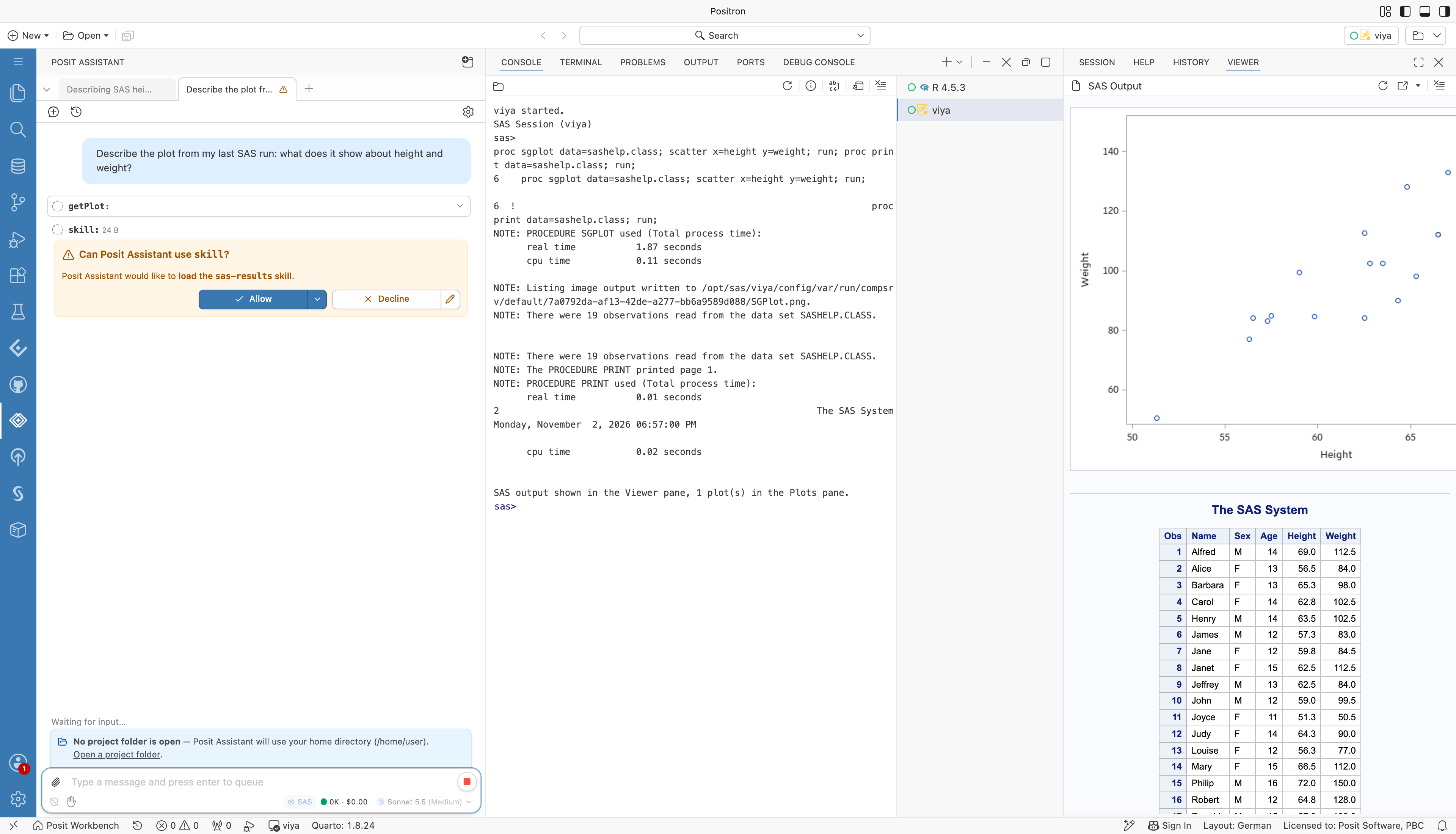
Posit Assistant asking whether it can use the sas-results skill. The conversation shows the question and the getPlot and skill steps, with Allow and Decline buttons.
As an example, ask about a result. After a console run that produced a plot, the assistant looks at the plot in the Plots pane and describes it. In this answer, it describes the direction, shape, and spread of the points, notes that it read the values by eye, and suggests PROC CORR and PROC REG to measure the relationship.
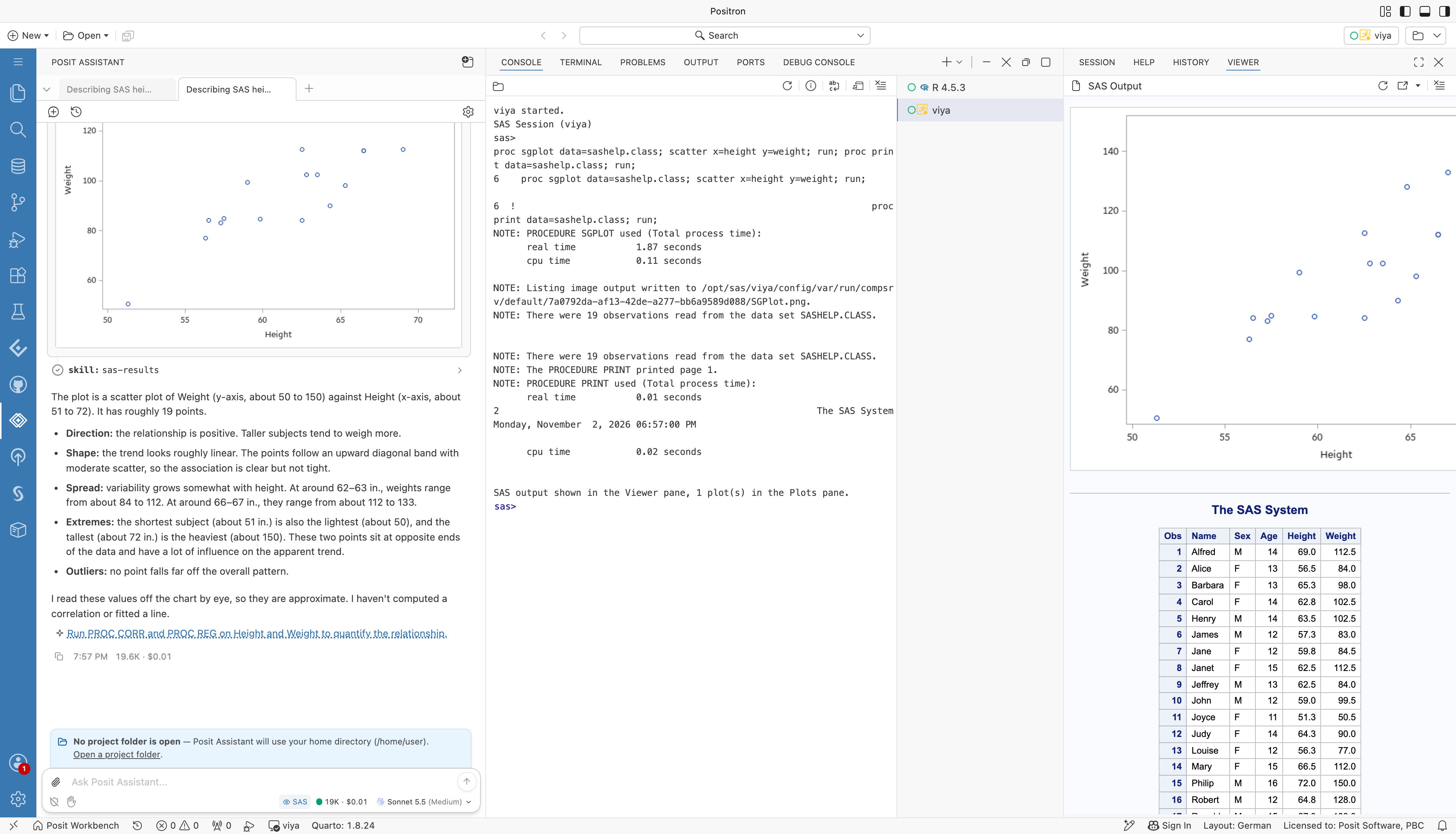
Posit Assistant describing a scatter plot of weight against height from a SAS run. The answer lists the direction, shape, spread, extremes, and outliers, and suggests a follow-up with PROC CORR and PROC REG.
Reports with Posit Assistant
Ask Posit Assistant for a report after a SAS analysis, for example with the /report command, and it writes a Quarto document that keeps the analysis in SAS. It does not ask whether to use R with haven or Python with pandas. The document has {sas} code chunks that run through the sasquatch R package.
Before it proposes an outline, the assistant checks the setup:
- sasquatch: if the package is not installed, the assistant asks whether to install it.
- saspy: if the Python package is missing, the assistant offers to run
sasquatch::install_saspy(). - Connection file: the assistant runs SAS: Export saspy Configuration, unless
sascfg_personal.pyalready exists next to the document.
For a SAS Viya profile, the assistant also runs SAS: Save Viya Token for saspy before each render when the SAS_VIYA_TOKEN environment variable is not set, so the render uses your existing sign-in.
A SAS report follows these rules:
- Setup chunk first: the first code chunk is an
{r}chunk labeledsetup, withlibrary(sasquatch)andsas_connect(). With only{sas}chunks, Quarto looks for a SAS Jupyter kernel and fails. - Chunk options: in a
{sas}chunk, options are written*| label: load-data;. The#|form that{r}chunks use stops the render. Leave one blank line between the last*|line and the first SAS statement: without it, only the first option is read. - Own SAS session: the render opens its own SAS session through saspy, not your console session. Tables in
WORKand macro variables from the console do not exist there. The report loads its data from permanent libraries or files, or repeats the DATA steps. - Formats:
{sas}chunks produce HTML and PDF output only.
Before the assistant says a report is done, it checks the {sas} chunks against these rules and renders the document. If it could not render, it says "Written, not rendered" and gives the reason.
The skill is part of the extension and works in Positron 2026.10 and later. In older versions, ask for the same steps by hand.
Traceability
The extension records who ran which SAS code, including code that Posit Assistant runs.
-
Audit log: set
SAS.audit.logFileto a file path to record every console submission as JSON Lines. A leading~expands to the home folder. Leave the setting empty to turn auditing off.- An
inputrecord holdsts,executionId,code,osUser,host,positronSessionId,profile,connectionType, and, when known,sasUser,workbenchServerUrl, andworkbenchSessionId. - A
completerecord holdsts,positronSessionId,executionId,status(okorerror),errorCount,warningCount, anddurationMs.
- An
-
Submission comment: the first line of each submission carries a comment that SAS writes to its log. The console hides it.
/* positron: user=<user> session=<session> exec=<execution> */ -
Macro variables: each session sets
&POSIT_USER,&POSIT_SESSION, and&POSIT_WORKBENCH_SESSION, so programs and autoexec files can reference them.&POSIT_WORKBENCH_SESSIONis empty outside Posit Workbench. -
SAS Viya tags: compute sessions are named
Positron SAS (<user>)and carry the user, host, and session IDs as attributes. Each console job is namedpositron-console, and its description holds the user, session, and execution IDs.
An example audit.jsonl with one submission:
{"event":"input","ts":"2026-11-02T10:15:00.000Z","osUser":"jdoe","host":"pwb-1","positronSessionId":"1a2b3c4d","profile":"local","connectionType":"stdio","executionId":"e7f8","code":"proc means data=sashelp.class; run;"}
{"event":"complete","ts":"2026-11-02T10:15:01.200Z","positronSessionId":"1a2b3c4d","executionId":"e7f8","status":"ok","errorCount":0,"warningCount":0,"durationMs":1200}
SAS Clinical Acceleration
On SAS Viya servers with SAS Clinical Acceleration, the Clinical Acceleration sidebar, next to the SAS one in the activity bar, shows the Clinical Repository, Clinical Workspace, Clinical Repository Properties, and Clinical Version History views. They let you browse the repository, edit files in your workspace, check files out and in, manage versions, and compare files and versions. The extension detects the service of the active profile's server and uses the existing SAS Viya sign-in. See SAS Clinical Acceleration for details.
Local SAS
The stdio connection type runs a SAS installation on the same machine as Positron, without SSH or SAS servers. The extension starts SAS as a child process in line mode (-nodms) and keeps it running for the session.
To set up a profile, run SAS: Add New Connection Profile, select SAS 9.4 (local - stdio), and enter the path of the SAS executable. The stdio connection profile lists all settings.
{
  "SAS.connectionProfiles": {
    "activeProfile": "local",
    "profiles": {
      "local": {
        "connectionType": "stdio",
        "saspath": "/opt/sas/viya/home/SASFoundation/sas"
      }
    }
  }
}
When the extension finds SAS on the machine, it adds a local profile like the one above. It looks in the paths of the SAS.localSasPaths setting, then at /opt/sas/viya/home/SASFoundation/sas (SAS Analytics Pro), then in common SAS 9.4 locations, where it uses the UTF-8 launcher bin/sas_u8, and finally for sas on the PATH. See SAS Installed with Workbench. It adds the profile once: a deleted profile stays deleted, and an existing stdio profile prevents it. The profile becomes the active profile only if no profile is active.
If the extension cannot save the profile to settings.json, for example because Posit Workbench writes settings.json at the same moment when a session starts, it tries again several times over about 15 seconds. If every attempt fails, a warning offers Retry: if settings.json shows unsaved changes, save or revert it first. A profile that could not be saved is added again at the next start. Version 0.6.2 or later is needed for this; with earlier versions, the profile could be lost on the first start in a SAS Analytics Pro image.
The profile's autoExec lines run once, right after SAS starts.
Features by Connection Type
| Feature | SAS Viya (rest) | SAS 9.4 or SAS Analytics Pro over SSH (ssh) | Local SAS (stdio) |
|---|---|---|---|
| SAS console and editor runs | Yes | Yes | Yes |
| Log in the console and SAS Log channel | Yes | Yes | Yes |
| Editor squiggles and Problems pane | Yes | Yes | Yes |
| Interrupt running code | Yes | No, restart to stop | No, restart to stop |
| HTML report in the Viewer | Yes | Yes | Yes |
| Graphs in the Plots pane | Yes | Yes | Yes |
| Libraries in the Connections or Data Connections pane | Yes | Yes | Yes |
| SAS Server Files connection | Yes | No | No |
| Data Explorer | Yes | Yes | Yes |
.sas7bdat and .xpt files on disk | If the server sees the path | If the server sees the path | Yes |
.sas7bdat and .xpt files from other views | Yes | No | No |
| Posit Assistant tools, context, and skill | Yes | Yes | Yes |
| Audit log, submission comment, and macro variables | Yes | Yes | Yes |
| Compute session and job tags | Yes | No | No |
| Sign-in through a Workbench OAuth integration | Yes | No | No |
| SAS Content and SAS Server views | Yes | No | No |
| Clinical Acceleration views | With SAS Clinical Acceleration | No | No |
Automatic local profile | No | No | Yes, for SAS Analytics Pro and SAS 9.4 |
Known Limitations
- Interrupt over SSH and stdio: these connection types cannot cancel running code. To stop it, restart the session.
- Several SAS Viya servers: consoles that connect to different SAS Viya servers at the same time are not supported.
- Sidebar views: the SAS Content and SAS Server views and SAS notebooks use a separate session of the active profile, not a console's session. With stdio, that starts one more SAS process.
- No reconnect: SAS sessions do not survive a reload of the Positron window. Positron discards them, and you start a new console.
- Data Explorer: exporting a selection, searching the column list, and column filters are not supported.
- Plots: SAS draws each graph once, so the Plots pane cannot redraw it at a new size.
- Viewer for Posit Assistant: the assistant can read the report in the Viewer only in Positron 2026.10 and later.